
Editing on the timeline
The timeline works the way editors expect: J-K-L playback, a full set of trim tools, snapping and ripple edits.
Play and move
- Space plays and pauses. J K L play backward, stop and play forward.
- ← → step one frame; with Shift, one second. Home and End jump to the start and end.
- ↑ ↓ jump to the previous and next edit point.
- Ctrl++ / Ctrl+− zoom the timeline; \ fits the whole sequence.
Tools
| Key | Tool | What it does |
|---|---|---|
| V | Selection | Select, move and trim clips. |
| R | Razor | Click to cut a clip where you click. |
| T | Trim | Trim an edge without moving anything else. |
| B | Ripple | Trim and close or open the gap after it. |
| N | Roll | Move a cut between two clips; the total length stays the same. |
| Y | Slip | Change which part of the source a clip shows. |
| U | Slide | Move a clip between its neighbours, trimming them. |
| A / Shift+A | Track select | Select everything after (or before) the click. |
Cut, trim and delete
- C, Ctrl+K or Ctrl+B split at the playhead; Ctrl+Shift+K splits every track.
- Q and W ripple-trim the head or tail of a clip to the playhead.
- Delete removes a clip and leaves a gap; X or Shift+Backspace removes it and closes the gap.
- Alt+← / → nudge the selection by a frame (add Shift for five).
- Shift+I and Shift+O mark in and out; ; lifts and ' extracts the marked range.
Snapping and markers
S turns snapping on and off; hold Alt while dragging to ignore it once. Shift+S snaps to the beat grid of your music. M adds a marker, Shift+M a named one, and , . jump between them.
Transitions
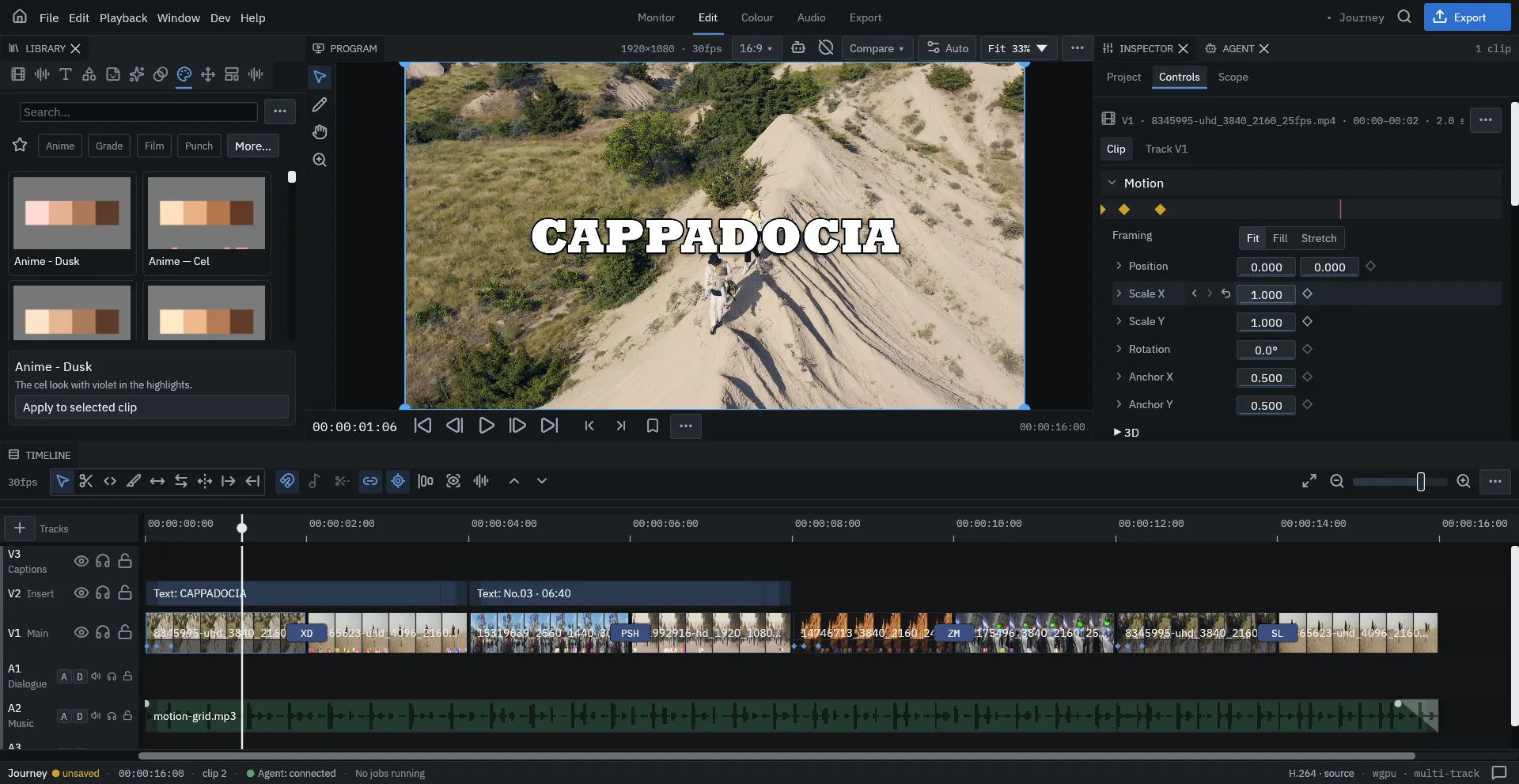
Drag a transition from the Library onto a cut, or select a cut and press Ctrl+Alt+D for the default one. Each transition shows as a badge on the cut — click it to change its length and settings in the Inspector.
Speed, framing and compound clips
- Time Remap in the Inspector changes speed with keyframes for ramps and freezes; clips can also be reversed.
- Framing decides how footage of another shape fills the sequence: Fit, Fill (with an offset) or Stretch.
- Group clips with Ctrl+G, or turn a selection into a compound clip you can open, edit and reuse like a nested sequence.
- Shift+E disables a clip without deleting it.
Keyframes
Click the diamond beside any value in the Inspector, or press I to key the selected clip at the playhead (Alt+I removes it). F9 applies easy ease; Ctrl+Alt+C / V copy and paste keyframes.